

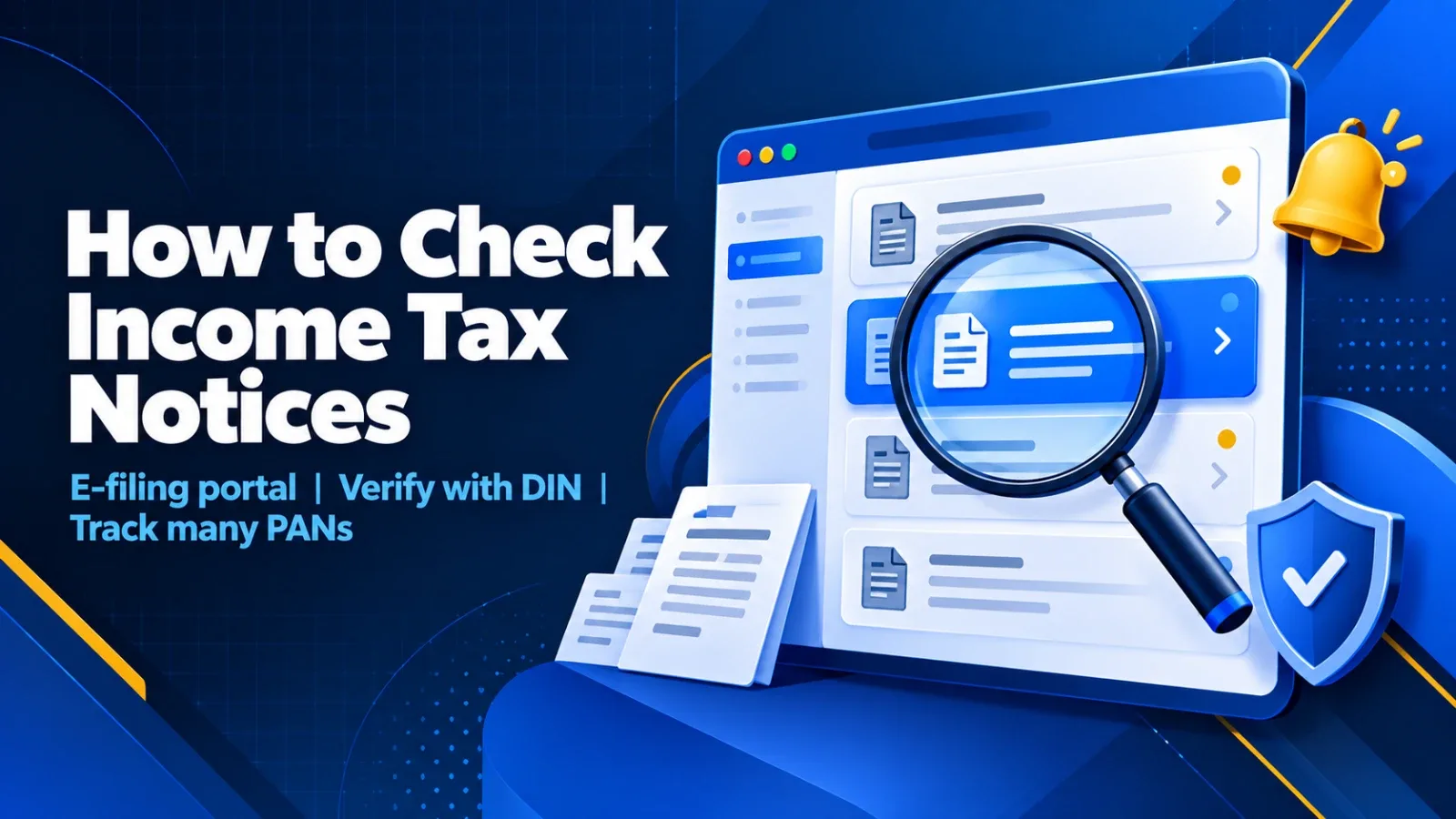
Step by step: check income tax notices online
Log in
Go to www.incometax.gov.in and log in with your PAN (user ID) and password. Open e-Proceedings
Go to Pending Actions → e-Proceedings. This lists notices issued to you by the assessing officer or by the processing centre, with the notice date and response due date. View the notice
Open a proceeding and click View Notice to read or download the PDF. Reply
Use Submit Response in the same screen and attach your documents. Check other pending items
Also check Pending Actions → Worklist for items waiting for your action, and Pending Actions → Response to Outstanding Demand for any demand raised. Check the Compliance Portal
For information mismatches, open the Compliance Portal (linked from the e-filing portal) to see e-campaigns and AIS feedback requests.
Check that a notice is genuine
What to note from every notice
| Detail | Where to find it | Why it matters |
|---|---|---|
| Assessment year | Top of the notice | Tells you which return it concerns |
| Section | Subject line | Tells you the type of notice |
| Response due date | Body or e-Proceedings list | Missing it can lead to an order without your reply |
| DIN | Header or footer | Proves the notice is genuine |
| Documents asked for | Body | What to attach to your reply |
Checking notices for many PANs
Authorised representative access on the e-filing portal, so one login can view clients who have added the firm. A shared tracker that someone updates after checking every PAN. It works only as long as someone keeps doing it. Notice management software. NoticeCPC syncs notices for many PANs and GSTINs into one list, shows each notice's due date and owner, and sends a notice alert before the deadline, so no one has to log in to each portal to find out what arrived.
Frequently Asked Questions
On the e-filing portal, under Pending Actions → e-Proceedings, after logging in with your PAN.
You can verify whether a notice is genuine without logging in, using its DIN in the "Authenticate notice/order issued by ITD" service. To read and reply to it, you need to log in.
Either by logging in to each client's PAN, through authorised representative access, or with notice management software that syncs notices for all PANs into one list.